Apple continues to enhance accessibility features with every iOS update, making iPhones more personalized and easier to use. Some of the iPhone accessibility features have been around for a while, the iOS 18, came out with several new features that improved how users interact with their devices.
Here’s a complete list of 50 accessibility and hidden iOS settings that can make your iPhone experience smarter, faster, and easier.
Hidden iOS Accessibility Features
1. Eye Tracking — Control Your iPhone Hands-Free
The Eye Tracking feature lets you navigate your iPhone using only your eyes. A small cursor follows your gaze, allowing you to open apps, scroll through pages, or control settings without touching the screen. It’s incredibly useful for users with mobility challenges or those who simply want a futuristic, touch-free experience.
To turn it on go to Settings → Accessibility → Eye Tracking and complete the quick calibration.
2. Music Haptics — Feel Every Beat
Music Haptics uses your iPhone’s Taptic Engine to create subtle vibrations in sync with the rhythm of your music. It lets you feel the beat physically, making the listening experience more immersive. This feature is useful for those with hearing difficulties.
You can activate it by visiting Settings → Accessibility → Music Haptics. Currently, it works best with Apple Music.
3. Vocal Shortcuts — Custom Voice Commands for Anything
Vocal Shortcuts allow you to create your own personalized voice commands to perform specific actions. Instead of saying ‘Hey Siri,’ you can define phrases like ‘Movie time’ to dim lights, launch Netflix, and enable Do Not Disturb mode simultaneously.
To set this up, go to Settings → Accessibility → Voice Control → Commands → Custom → Create New Command.
4. Vehicle Motion Cues — Reduce Motion Sickness While Traveling
This feature overlays subtle motion cues on your iPhone screen that move in sync with your vehicle. It helps reduce the mismatch between what your eyes see and what your body feels, making travel more comfortable for people prone to motion sickness.
Enable it in Settings → Accessibility → Motion → Show Vehicle Motion Cues and select Automatic for adaptive activation.
5. Background Sounds — Stay Focused and Calm
Background Sounds plays calming audio like ocean waves, rain, or white noise to help you concentrate or relax. It’s perfect for studying, working, or winding down before bed. You can even blend it with your regular media playback.
Turn it on via Settings → Accessibility → Audio & Visual → Background Sounds and choose your preferred ambient sound.
6. Sound Recognition — Stay Alert Without Hearing Everything
Sound Recognition listens for important sounds, like alarms, doorbells, or crying. This feature alerts you instantly with notifications. It’s especially useful for users with hearing loss or those using noise-canceling headphones.
Set it up by going to Settings → Accessibility → Sound Recognition and toggle on the sounds you want your iPhone to monitor.
7. Headphone Notifications — Protect Your Ears Automatically
Headphone Notifications monitor your volume levels and warn you when sound exposure gets too high. It helps you maintain healthy listening habits and prevents long-term hearing damage.
To enable it, open Settings → Sound & Haptics → Headphone Safety, then turn on both Headphone Notifications and Reduce Loud Sounds.
8. Siri Call Hang Up — End Calls Using Your Voice
With Siri Call Hang Up, you no longer need to touch your screen to end a call. Simply say ‘Hey Siri, hang up’ and your iPhone ends the call instantly. It’s handy for when your hands are busy cooking, cleaning, or driving.
Activate it by visiting Settings → Accessibility → Siri → Call Hang Up.
9. Live Captions — Real-Time Subtitles for Any Audio
Live Captions transcribe any audio content on your iPhone, from FaceTime calls to videos and podcasts. It’s a game-changer for people who are deaf or hard of hearing. You can enable it via Settings → Accessibility → Live Captions.
Once turned on, captions appear automatically and can be resized or repositioned as needed.
10. Live Speech — Turn Text into Spoken Voice
Live Speech lets you type phrases that your iPhone will read aloud in your chosen voice. It’s especially useful for users who cannot speak but want to communicate during phone calls or FaceTime. Go to Settings → Accessibility → Live Speech to enable it, and add your most-used phrases for quick access.
11. Personal Voice — Create a Digital Version of Your Voice
Personal Voice lets you train your iPhone to generate a realistic version of your voice using on-device learning. After recording a few samples, your iPhone can use this voice for Live Speech or other accessibility tools.
You can find it under Settings → Accessibility → Personal Voice and follow the guided setup process.
12. AssistiveTouch — Simplify On-Screen Controls
AssistiveTouch places a floating button on your screen for easy access to common actions like taking screenshots or locking the phone. It’s customizable and ideal for users who find physical buttons difficult to use.
To enable it, navigate to Settings → Accessibility → Touch → AssistiveTouch and choose the shortcuts you need most.
13. Voice Control — Command Your iPhone by Talking
Voice Control allows you to operate your iPhone entirely through spoken commands. You can open apps, adjust volume, swipe, or type, all without touching the screen. It’s great for users who prefer hands-free operation.
To activate it, go to Settings → Accessibility → Voice Control and toggle it on.
14. Back Tap — Turn the Back of Your iPhone into a Shortcut
Back Tap transforms the back of your iPhone into a hidden button. You can double or triple-tap to trigger actions like taking a screenshot, launching the camera, or activating accessibility shortcuts. To set it up, visit Settings → Accessibility → Touch → Back Tap and assign your preferred actions.
15. Sound Recognition Custom Alerts — Detect What Matters
Beyond preset options, you can record and train your iPhone to recognize unique sounds like a specific alarm or appliance tone. Once trained, your iPhone notifies you whenever it detects the sound. This is particularly helpful for users with hearing impairments.
Enable it under Settings → Accessibility → Sound Recognition → Custom Sound.
16. Haptic Feedback on Face ID — Subtle Unlock Confirmation
When Face ID successfully authenticates, your iPhone can vibrate to confirm the unlock. This subtle feedback is reassuring and discreet. Enable it via Settings → Accessibility → Face ID & Attention → Haptic on Successful Authentication.
17. Reduce Motion — Smoother, More Comfortable Animations
If you experience discomfort from fast animations or flashing lights, Reduce Motion is a must. It tones down transitions and visual effects across the system, creating a calmer viewing experience. Activate it in Settings → Accessibility → Motion → Reduce Motion.
18. Control Nearby Devices — Manage Multiple Apple Devices
Control Nearby Devices allows you to use your iPhone to control your iPad, Apple Watch, or Apple TV seamlessly. It’s convenient when one device is out of reach. Enable it in Settings → Accessibility → Control Nearby Devices and follow the pairing instructions.
19. Touch Accommodations — Customize Touch Sensitivity
Touch Accommodations lets you fine-tune how your iPhone responds to touch. You can adjust hold duration or ignore repeated taps to prevent accidental actions. It’s ideal for users with limited motor control. Set it up by going to Settings → Accessibility → Touch → Touch Accommodations.
20. Per-App Settings — Tailor Accessibility by App
This feature lets you apply specific accessibility preferences for individual apps. You can enlarge text in one app while keeping others normal, or use different color filters where needed. Access it via Settings → Accessibility → Per-App Settings and add the apps you want to customize.
21. Increase Text Size — Read Without Strain
If reading small text is difficult, you can increase system-wide text size. It enlarges fonts across apps, menus, and notifications for better visibility. Go to Settings → Accessibility → Display & Text Size → Larger Text, then adjust the slider until it feels comfortable.
22. Bold Text — Make Everything Easier to Read
Bold Text makes text across the system thicker and more legible. It’s perfect for users who find thin fonts hard to read. Enable it from Settings → Accessibility → Display & Text Size → Bold Text and enjoy improved clarity across all apps.
23. White Noise — Relax with Soothing Sounds
The built-in white noise option lets you play sounds like ocean waves, stream, or rain directly from your iPhone. It helps improve focus and relaxation without third-party apps.
Access it under Settings → Accessibility → Audio & Visual → Background Sounds and select your favorite ambient tone.
24. Face ID with Mask — Unlock Without Removing Your Mask
This feature lets Face ID recognize your eyes and upper face while wearing a mask. It’s helpful in public spaces or workplaces where masks are required. Go to Settings → Face ID & Passcode → Face ID with a Mask and follow the setup prompts.
25. LED Flash Alerts — Visual Notifications Made Simple
LED Flash Alerts blink your iPhone’s camera flash whenever you receive calls, texts, or notifications. It’s a clear visual cue for anyone with hearing impairments. Activate it by navigating to Settings → Accessibility → Audio & Visual → LED Flash for Alerts.
26. Type to Siri — Communicate Silently with Siri
Type to Siri allows you to input text instead of speaking commands aloud. It’s discreet, useful in quiet environments, and ideal for users with speech impairments. You can enable it in Settings → Accessibility → Siri → Type to Siri.
27. Control Center Customization — Quick Access to Key Features
Control Center can be customized to include shortcuts for Accessibility features such as Magnifier, Dark Mode, or Hearing controls. This ensures faster access to tools you rely on most. Set it up via Settings → Control Center → Customize Controls.
28. Reduce Transparency — Increase Readability
Reducing transparency removes background blur effects and improves contrast across iOS interfaces. It makes icons, text, and menus easier to distinguish for users with low vision. Activate it under Settings → Accessibility → Display & Text Size → Reduce Transparency.
29. Audio Balance — Adjust Left and Right Ear Volume
If your one ear hears better than the other, you can adjust the balance between left and right audio channels. Go to Settings → Accessibility → Audio & Visual → Balance and drag the slider toward L or R as needed.
30. Alternate Appearance for Face ID — Faster Recognition
Adding an alternate appearance helps Face ID recognize you even with glasses, hats, or hairstyle changes. Go to Settings → Face ID & Passcode → Set Up an Alternate Appearance and follow the instructions.
31. Accessibility Shortcut — Activate Features Instantly
You can assign an Accessibility Shortcut to quickly toggle tools like VoiceOver, Zoom, or AssistiveTouch. Triple-press the Side button to access them. Customize it under Settings → Accessibility → Accessibility Shortcut.
32. Motion Reduction — Ease Screen Animations
Reduce Motion simplifies transitions and disables parallax effects that can cause dizziness. It’s particularly beneficial for users sensitive to motion. Enable it through Settings → Accessibility → Motion → Reduce Motion.
33. Guided Access — Lock Your iPhone to a Single App
Guided Access restricts your device to one app, preventing accidental exits or access to other apps. It’s great for kids or focused work sessions. Activate it in Settings → Accessibility → Guided Access, then triple-click the Side button to start.
34. Speak Selection — Have Text Read Aloud
Speak Selection lets your iPhone read selected text out loud, which is great for hands-free reading or learning pronunciation. Enable it via Settings → Accessibility → Spoken Content → Speak Selection.
35. Live Voicemail — See Who’s Calling Before Answering
Live Voicemail transcribes incoming voicemails in real time, letting you decide whether to answer immediately. It’s useful when screening unknown callers. Enable it through Settings → Phone → Live Voicemail.
36. Focus Modes — Block Distractions Smartly
Focus Mode filters notifications and apps based on your activity. You can segregate notifications based on whether you’re Working, Sleeping, Driving, and more. You can even create custom modes.
Go to Settings → Focus to set up different profiles for every context.
37. Dark Mode — Save Battery and Reduce Eye Strain
Dark Mode switches your interface to darker tones, reducing glare and improving battery life on OLED screens. Toggle it in Settings → Display & Brightness → Dark, or use Control Center for quick switching.
38. Side Button Speed — Adjust Press Sensitivity
You can change how fast you need to press the Side button for double or triple actions. It’s helpful if your case is stiff or you have slower reflexes. Find it in Settings → Accessibility → Side Button.
39. Sound Recognition Custom Sounds — Personalized Alerts
iOS allows you to record unique sounds, like a washing machine or door knock, and receive alerts when detected. Perfect for customized household alerts. Access it from Settings → Accessibility → Sound Recognition → Custom Sound.
40. Screen Reader Shortcuts — Fast Accessibility Access
You can assign shortcuts to instantly enable VoiceOver, Zoom, or Color Filters. It’s a time-saver for frequent accessibility users. Manage them under Settings → Accessibility → Accessibility Shortcut.
41. Apple TV Remote Accessibility — Simplify Controls
If you use your iPhone as a remote, you can enable button-based navigation for easier control instead of swipe gestures. Enable this under Settings → Accessibility → Apple TV Remote.
42. Change Haptic Touch Duration — Customize Touch Response
Haptic Touch lets you control how long you need to press and hold items for menus or previews to appear. You can make it faster or slower depending on comfort. Adjust it via Settings → Accessibility → Touch → Haptic Touch.
43. Sound Recognition for Doorbells — Safety at Home
Sound Recognition can be trained to identify doorbells, alarms, or even a baby crying, ensuring you don’t miss important alerts. Turn it on under Settings → Accessibility → Sound Recognition and enable Doorbell.
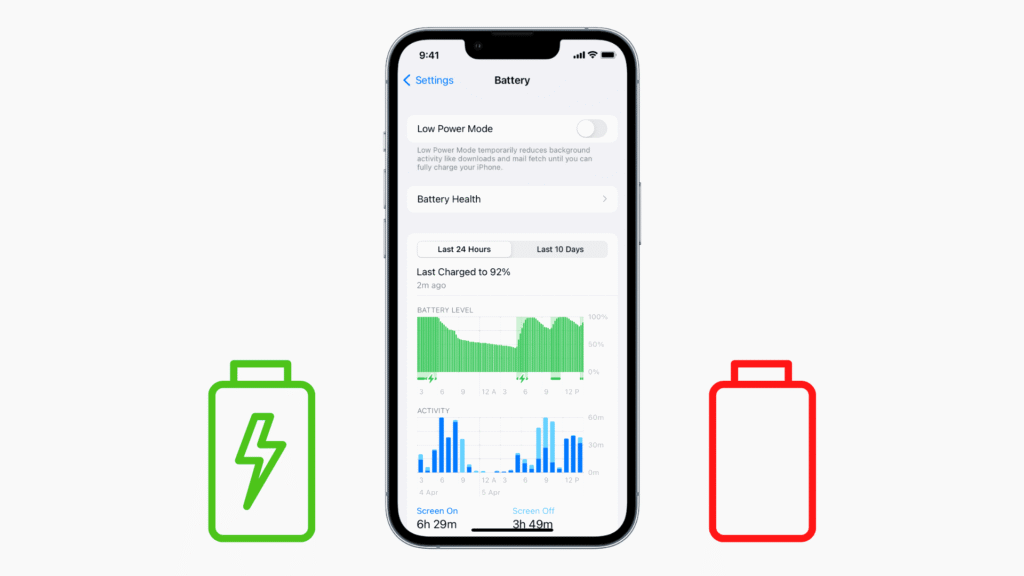
44. Battery Charge Limit — Preserve Battery Health
You can now limit your iPhone’s maximum charge to a set percentage like 80% or 95%. This helps prolong battery lifespan.
Go to Settings → Battery → Charging → Charge Limit and select your preferred level.
45. Magnifier — Turn Your iPhone into a Digital Zoom Tool
The Magnifier uses your iPhone’s camera to enlarge text or objects around you. It’s handy for reading fine print. Enable it from Settings → Accessibility → Magnifier, or add it to Control Center for quick access.
46. Motion Sensitivity — Fine-Tune Visual Effects
This lets you reduce or adjust motion sensitivity for smoother animations in specific apps. Ideal for users with vestibular sensitivities. Go to Settings → Accessibility → Motion → Reduce Motion and fine-tune the sliders.
47. Keyboard Feedback — Feel Every Keystroke
You can enable haptic feedback for the keyboard to feel a slight vibration with every tap, enhancing typing accuracy. Go to Settings → Sound & Haptics → Keyboard Feedback and enable Haptic.
48. Screen Time Accessibility — Manage App Use Better
Screen Time allows users to set app limits and focus periods to reduce digital fatigue. It’s perfect for maintaining balance. Access it through Settings → Screen Time → App Limits.
49. Siri Pause Time — Make Siri Wait Longer
Siri Pause Time adjusts how long Siri waits after you finish speaking before responding. It’s useful for users who speak slower. Enable it via Settings → Accessibility → Siri → Siri Pause Time and choose Longer or Longest.
50. Accessibility Shortcut Menu — Customize What Appears
You can customize which Accessibility tools appear in the shortcut menu when you triple-press the Side button. Add or remove tools as needed. Set this up under Settings → Accessibility → Accessibility Shortcut.
Summing Up
There you have it. That’s the entire list of accessibility features you can enable on your iPhone to make your life easier. Accessibility features are designed to ensure that you can use your device to its maximum potential. They come in extremely handy when you have vision, hearing, or some other kind of disability that makes it hard for you to use specific features of the device.
Hopefully this list of accessibility features can make your life a little bit easier.