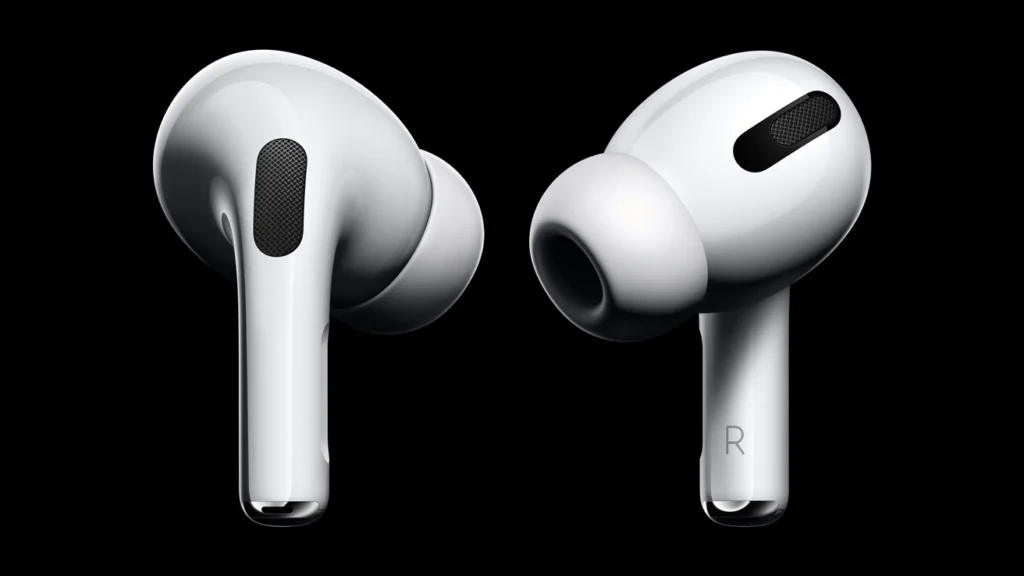
AirPods are excellent, the sound quality, the convenience, and, best of all, the noise cancellation. Every new generation of AirPods is built better than the previous one. I’ve been using the AirPods since they launched (December 2016). I have changed three pairs of AirPods throughout the years. There’s one problem that I have found across all devices. It’s the AirPods connected, but no sound is coming from the device.
So, I decided to write this guide to help you fix the issue of sound not coming. Note – The solutions would work on all AirPods generations (AirPods 1, AirPods 2, and AirPods Pro generations).
Methods to Fix AirPods Connected But No Sound Issue
1. Update iOS
I’ve said this in multiple troubleshooting guides: whenever you’re facing an unusual problem on your Apple devices, check the firmware version.
In this case, too, I’d suggest you update your iPhone if it isn’t up-to-date. Here’s how to do so:
- Go to Settings
- Click on General
- Click on Software Update.
If there’s an update available, download & install it. Wait for the updates to be installed. Your device will automatically restart. Once it turns on, connect your AirPods with the device and see if you can hear any sound.
2. Clean AirPods Thoroughly
AirPods are infamous for collecting dirt and other elements from the environment. This dirt and other elements can sometimes prevent your AirPods from properly connecting the devices.
The Good thing is that cleaning your AirPods is super easy. Use a soft, dry, lint-free cloth. You’ll need a cotton swab to clean the microphone, in-ear detection sensor, and speaker mesh.
If you have a soft-bristled brush, you can also use that to clean the mic, sensors, and speaker mesh gently.
3. Connect AirPods Properly
If you switch your AirPods between devices like your Mac, iPad & iPhone, it could be they did not connect to the device you wanted the right way. You can try to connect to the device again correctly.
Put both the AirPods in the case. Open the case again and hold it close to the device you want to connect. Once the connection animation comes up, press the Connect button. Try playing some audio to see if they connect correctly.
4. Double-Check the Sound
It could be just that your AirPods are stuck on a lower volume. Your iPhone can reduce the sound limit to a specific volume so you don’t hurt your ears in the long run. If you’re facing AirPods connected but no sound issue, this could be the reason.
Here’s how to fix this issue – Go to Settings > Music > Volume Limit. Make sure that the volume is set to maximum.
5. Check AirPods Battery
Have you checked the battery of your AirPods? If the batter is low, then chances are you won’t get any sound. The fix is simple. Place both your AirPods in the case, plug the case into the charger, and wait for them to get charged.
6. Reset your AirPods
If you’re unable to hear any sound from your AirPods and you’ve tried all the methods mentioned above, you can try resetting the AirPods. Put the AirPods in the case and close the lids.
Open the lids, press and hold the setup button on the back of the case for a few seconds. Keep holding till the light turns white. Connect AirPods with your device again and try playing the music again. Also, keep in mind that Apple products are really prone to fraud, so you should also check if your AirPods Max are real or not.
7. Turn off in-ear Detection.
The small black rectangular dot on your AirPods is the in-ear detection sensor. If the sensor is damaged, scratched severely, or not working, your AirPods won’t play any sound or keep on pausing.
You can turn off automatic in-ear detection in the settings to get rid of this issue. Here’s how to turn off the in-ear detection: Go to Settings > tap the name of your AirPods > turn off Automatic Ear Detection.
8. Reset Network Settings
If your AirPods aren’t working, you can reset the network settings on your iPhone. Resetting this setting would reset all call settings, WiFi networks, & Bluetooth devices. This will fix all Network problems, and you’ll be able to hear your AirPods properly.
Here are the steps you need to follow to reset the network settings:
- Open Settings on your iPhone.
- Go to General
- Scroll down till you find the Reset option
- Go to Reset Network Settings
- Enter your password if asked
Final Take – Fixing AirPods Connected But No Sound Issue
I hope that helps. This marks the end of the guide to fixing the AirPods connected but no sound issue. Try out all the solutions mentioned one by one, and you’ll be able to resolve the problem in no time.